

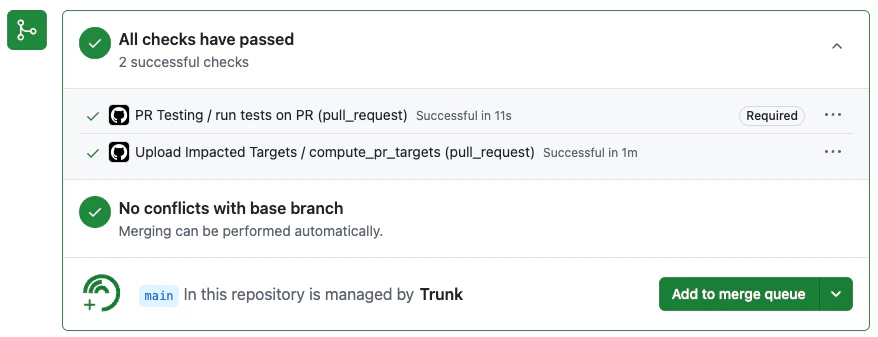
The extension is a companion to Trunk Merge Queue — you still need a configured queue for your repository. The extension only surfaces controls and status for queues your Trunk organization already owns.
- Open the Trunk for GitHub listing in the Chrome Web Store.
- Click Add to Chrome and approve the requested permissions.
- Pin the Trunk icon to your toolbar so the popup is one click away.
- Click the Trunk icon and sign in. The extension uses your existing browser session at app.trunk.io - if you’re already logged in, no additional sign-in is needed.
Submit a pull request to the queue
On any pull request in a queue-enabled repository, the extension adds a Merge Queue panel replacing GitHub’s native merge controls.- Open the pull request on GitHub.
- In the Trunk panel, click Add to Merge Queue.
- Optionally choose a priority before submitting.
- If batching is enabled for the repository, you can toggle Skip batching to enqueue this PR without grouping it into a batch — useful for hotfixes or PRs that need to merge without waiting for a batch window.
/trunk merge comment and the Trunk web app, so behavior is identical. See Submit and cancel pull requests for the full lifecycle.
Remove a pull request from the queue
If a PR is already in the queue, the panel shows a Cancel action.- Click Cancel in the Trunk panel on the PR page.
- The PR is removed from the queue immediately, the same as running
/trunk cancel.
Track testing progress
Once a PR is in the queue, the extension panel updates in real time as it moves through each state:- Queued - waiting for prerequisites such as branch protection or mergeability
- Pending - admitted to the queue, waiting for capacity
- Waiting to Batch - admitted to the queue and waiting for additional PRs to form a batch before testing begins (shown when batching is enabled and the queue is accumulating PRs)
- Testing - actively running required status checks against a merge candidate
- Tests Passed - waiting for upstream PRs before merging
- Merged - the PR merged successfully; the panel shows a success state and stops polling
- Failed - one or more required checks did not pass; the panel lists the failed checks by name with links to their run logs
- Cancelled - the PR was removed from the queue; the panel shows who cancelled it (for example, “Cancelled by alice”) when that information is available
Resubmit after failure or cancellation
When a PR leaves the queue in a Failed or Cancelled state, the extension panel shows a Resubmit button that re-enqueues the PR in one click. You do not need to switch to the Trunk web app or post a/trunk merge comment.
Failed check details come from the most recent testing attempt only. If a PR was re-enqueued after an earlier failure and then cancelled, the panel shows the cancellation state rather than check failures from the earlier run.
Configuring row hiding
On pull requests managed by Trunk, the extension can hide parts of GitHub’s native UI that its own panel makes redundant. Two toggles hide status rows in GitHub’s merge box (the panel at the bottom of a pull request that shows whether it can be merged); a third hides Trunk’s own merge-queue bot comments. Each toggle defaults to on and is saved per browser profile. To configure them, click the Trunk toolbar icon, open Settings, and find the Hide rows card.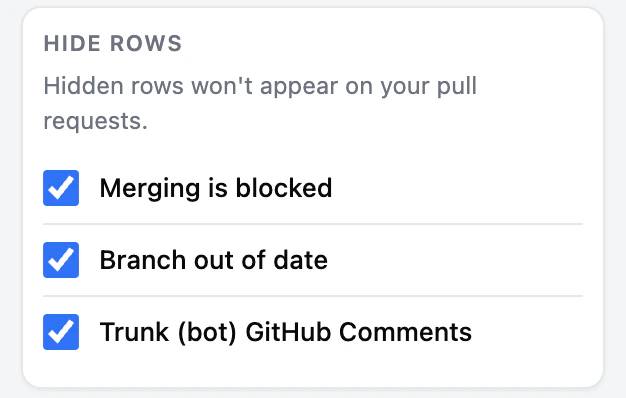
| Toggle | What it hides | Default |
|---|---|---|
| Merging is blocked | GitHub’s “Merging is blocked” merge-box status row, replaced by the Trunk panel | On |
| Branch out of date | GitHub’s informational Conflicts row when there are no actionable conflicts. Rows with “This branch has conflicts that must be resolved” or a Resolve conflicts control are always left visible. | On |
| Trunk (bot) GitHub Comments | Trunk bot comments that prompt you to submit a PR to the merge queue (for example, “To merge this pull request, check the box” or a comment containing a /merge-queue/ link) | On |
trunk-io bot account) are hidden. Comments from other bots and Trunk’s non-merge-queue comments are left untouched. All submit, cancel, and status actions remain available through the extension panel regardless of these settings. Hiding is applied only on PR pages where the Trunk overlay is active.
Rolling the Extension out to an entire Org
Chrome admins can install the Trunk extension for everyone in a Google Workspace organization using the Chrome Web Store IDliggeliamkammmieidmmfmmdnjilabgn. See Google’s Automatically install apps and extensions guide for the admin console steps.
Authentication and security
The extension does not ask you for credentials, API tokens, or a separate password. It authenticates by reusing your existing browser session at app.trunk.io — the same session you already use for the Trunk web app.- Session-based auth. When you take an action in the extension, the request is sent to the Trunk API with the cookies your browser already holds for
app.trunk.io. If you aren’t signed in, the extension prompts you to sign in once via the normal Trunk login flow; from then on it piggybacks on that session. - No new credentials are stored. The extension does not generate, store, or transmit a long-lived token. Signing out of app.trunk.io signs the extension out as well.
- Permissions are unchanged. The extension can only see queues and act on PRs that your Trunk user already has access to - it cannot escalate permissions. Every action is recorded against your Trunk user, just as it would be from the web app or CLI.
- Scoped to GitHub PR pages. The content script runs on
github.compull request URLs so it can render the overlay; it does not read or transmit page contents beyond the repository and PR identifiers needed to query the Trunk API. - Same transport guarantees as the rest of Trunk. All extension traffic to Trunk uses TLS, and your data is handled per the Trunk Security policy.
Frequently asked questions
Do I need to setup anything besides the extension?
Do I need to setup anything besides the extension?
Yes - the extension is an add-on on top of Trunk Merge Queue. Your repository must have the Trunk GitHub App installed and a queue configured before the overlay does anything useful.
Why don't I see the overlay on a PR?
Why don't I see the overlay on a PR?
The overlay only appears on pull requests in repositories that your Trunk organization has configured a queue for. If you’re signed in and still don’t see it, confirm the repository in Settings → Repositories in the Trunk web app.
Does the extension work in other Chromium browsers?
Does the extension work in other Chromium browsers?
The extension targets Chrome. Chromium-based browsers (Edge, Brave, Arc) generally work via the Chrome Web Store, but only Chrome is officially supported.
How does the extension differ from the `/trunk merge` comment?
How does the extension differ from the `/trunk merge` comment?
Both go through the same Trunk Merge Queue backend. The extension is a faster, in-page surface for the same actions and adds live status without polling the PR comments.
How do I configure extension settings?
How do I configure extension settings?
Click the Trunk toolbar icon and open Settings in the popup to access the in-popup settings panel. Settings are organized into cards:
For Celebration Mode, right-click the Trunk toolbar icon and choose Options (or click the icon and choose Options) to open the full-page options view.
The celebration effect respects your operating system’s reduced motion preference. If you have Reduce motion enabled in your system accessibility settings, no animation plays regardless of this toggle.
| Card | Settings |
|---|---|
| Hide rows | Three toggles for hiding GitHub rows the Trunk overlay replaces. See Configuring row hiding above. |
| Verbose logging | Enable detailed debug logging; the title shows the current log size. Disabling stops new writes but does not clear buffered logs. Use Review or Clear to manage them. |
| Keyboard shortcuts | Shortcut configuration. |
| Setting | Description | Default |
|---|---|---|
| Celebration | When enabled, a confetti burst plays each time you add a pull request to the merge queue. | Off |